
Before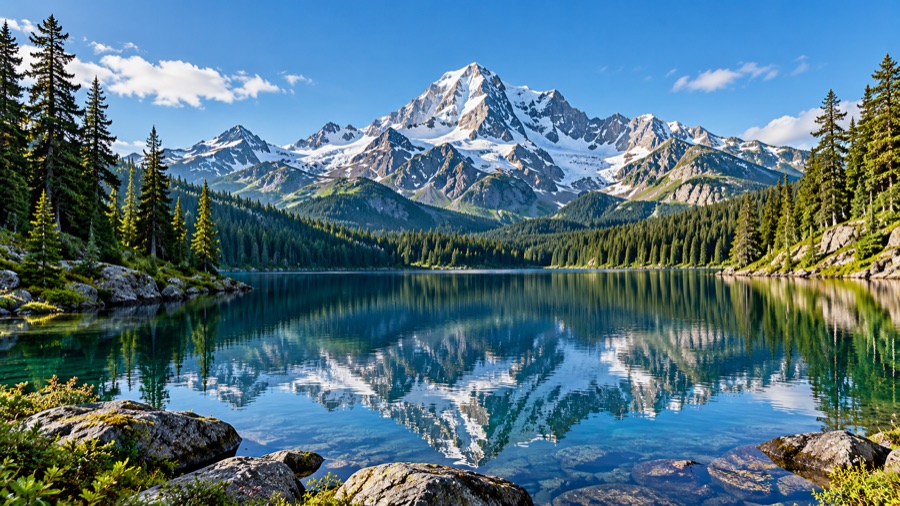
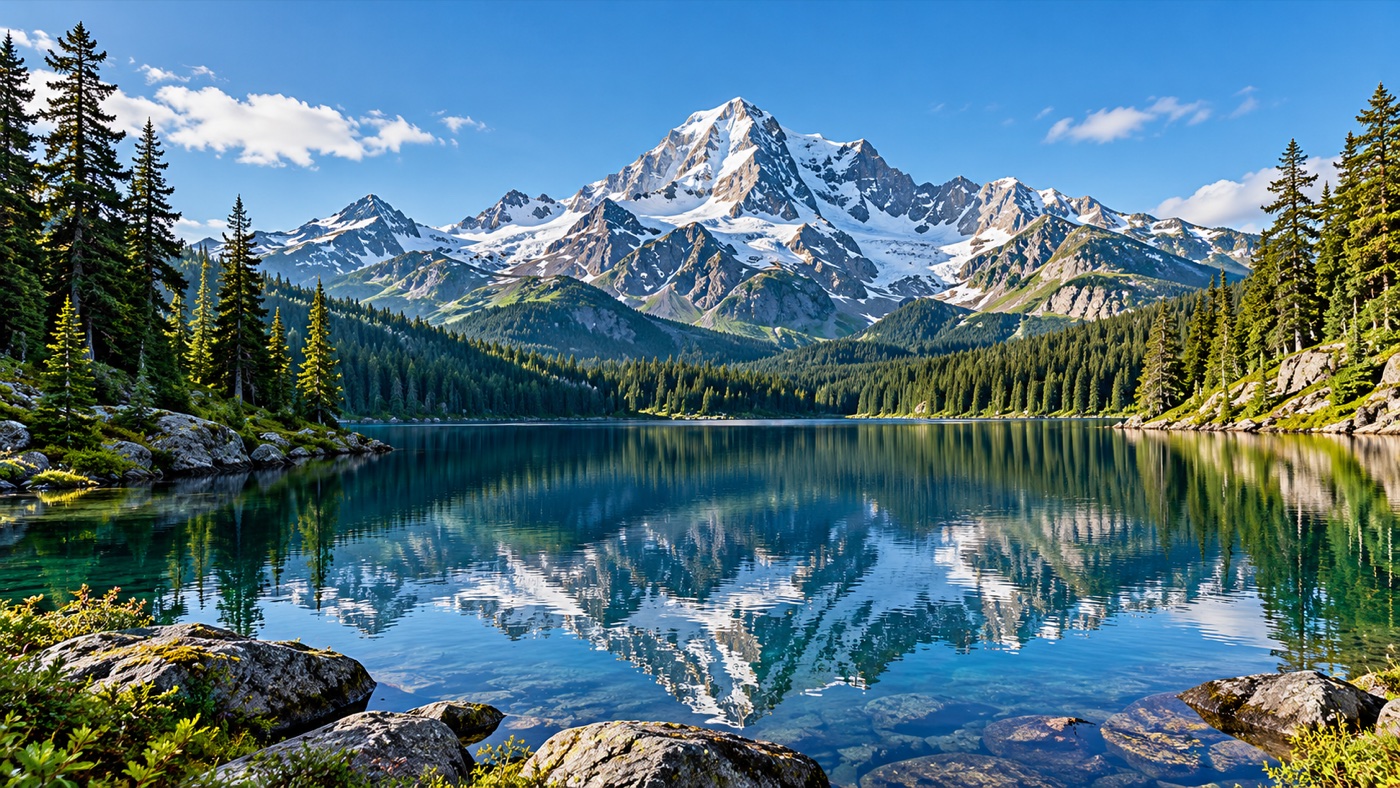
After
Turn a tight crop into a wider landscape composition.
Expand image backgrounds to fit a new frame without stretching the original image.
The latest successful result and its original image are saved only in this browser for refresh recovery. Records expire after 24 hours and are cleared on your next visit. Changing the image or choosing Start over removes the saved record.
Generate new background with AI, change pixel dimensions, crop a composition, or add transparent or solid space.
Generate new visual content beyond the borders of a photo.
Set image width and height, with optional aspect ratio locking.
Choose a target ratio and adjust which part of the photo to keep.
Add transparent or solid-color padding without generating new content.
Before & after examples
See how uncropping can create room around a subject without stretching the original image.
Turn a tight crop into a wider landscape composition.
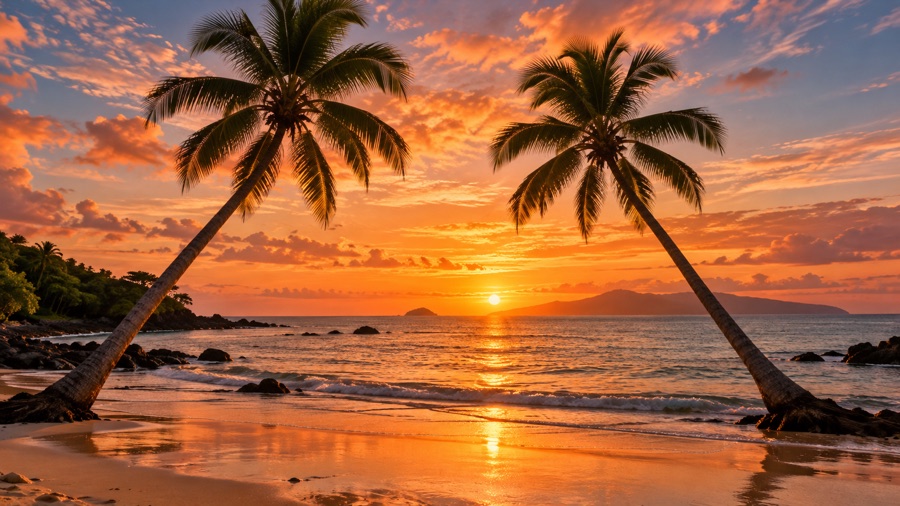
Add breathing room for banners, headers, and social layouts.
These are pre-made sample previews for demonstration. They are not generated from your upload.
How it works
Choose a JPG, PNG, or WebP image from your device.
Choose an expansion direction and aspect ratio, then set how much background to add.
Review the result, compare it with your original, and download the generated image.
Image expansion explained
An AI image expander changes the frame around a photo. Instead of enlarging every pixel or cutting part of the image away, it creates new visual content beyond one or more edges. This process is also known as generative expansion, AI outpainting, or uncropping.
ExpandImage.org keeps the uploaded image at its original proportions, places it on a larger target canvas, and marks only the added area for generation. The AI uses nearby colors, textures, lighting, and perspective as context for the new background.
Choose the final format before generating. A wide frame can make room for a banner, while a vertical frame can suit a phone layout. Select the side where you need more space and preview the composition. After generation, check the join between the original and added background, especially near faces, text, and straight lines.
Resizing changes the dimensions of the whole image. Expansion keeps the source composition and adds new canvas around it.
Cropping removes pixels to reach a new aspect ratio. Uncropping adds room so more of the composition can remain visible.
The AI predicts a continuation of the scene outside the original borders; it does not reveal hidden pixels from the source file.
Aspect ratio guide
Choose a target ratio based on where the finished image will appear. The added area is calculated from the source dimensions and selected expansion amount.
Useful for profile images, product tiles, galleries, and square social posts.
A balanced frame for presentations, editorial images, and general website content.
Expand an image background for website heroes, video thumbnails, slides, or desktop wallpapers.
Add space above and below for stories, reels, mobile backgrounds, and portrait layouts.
Use cases
Add room above or beside a subject when the original crop feels too tight.
Create extra composition space for marketplace layouts or campaign copy.
Adapt one source image to square, landscape, or portrait formats.
Extend a background for wider banners without stretching the original pixels.
Better source images
AI results vary, but a suitable source image and a realistic target frame give the model better context.
Images with visible sky, wall, water, ground, or another repeating background near the border are usually easier to continue.
A moderate amount of new canvas gives the model more nearby context than a very large extension in one request.
Faces, hands, text, logos, and detailed objects touching the border can produce less predictable continuations.
Check seams, repeated objects, small details, and text before publishing or using the image commercially.
Processing and limits
Your browser validates the file and prepares the canvas and mask. Generation sends that prepared data to the configured third-party AI provider.
JPG, PNG, and WebP uploads are checked by file signature, MIME type, dimensions, pixel count, and size before processing.
AI may create seams, duplicate objects, altered details, or unrealistic content. Review every result; exact reconstruction and pixel-perfect source preservation are not guaranteed.
Frequently asked questions
You can make up to 10 AI generation attempts per day, resetting at 00:00 UTC. Without accounts, the allowance is tracked by network IP, so people on the same network may share it. An attempt counts when admitted for generation, even if the provider later fails. Downloads, resizing, cropping, and canvas padding do not count. Free generation may pause when the service-wide usage limit is reached.
An AI image expander adds newly generated visual content beyond the original image boundaries so the image can fit a larger or differently shaped frame.
AI outpainting is the technique used to generate content beyond an image's existing borders. Image extenders and uncrop tools apply that technique through a simpler frame-based workflow.
Expanding adds generated content outside the current frame. Resizing changes the pixel dimensions of the entire image, while cropping removes part of the existing image.
The uploader accepts JPG, PNG, and WebP images up to the configured file and pixel limits. The server verifies the actual file bytes before contacting the image provider.
No. Validation and canvas preparation happen in your browser, but generation sends the prepared image and mask to our configured third-party AI provider.
Use 1:1 for square layouts, 4:3 for a standard landscape frame, 16:9 for wide banners or screens, and 9:16 for vertical mobile content. You can also expand in a chosen direction when only one edge needs more room.
The edit mask and prompt ask the provider to preserve the original area, but perfect pixel-for-pixel preservation cannot be guaranteed until a returned result is inspected.
Processing time depends on the configured provider, image, and demand. A request can take more than a minute, and the page reports timeout or provider failures without automatically repeating a paid request.
Photos with consistent backgrounds and clear visual context near the edges are generally easier to extend. Busy borders, cut-off faces or hands, typography, and complex geometry can be less predictable.
Yes. You can download a result and use it as a new source, although each generation may introduce new details or artifacts. Inspect quality after every step.
Download is enabled only after a real provider image is returned and its pixel dimensions match the selected target. Changing a setting requires a new generation before download.